
WizTools123
WizTools123
Free Online Tools

Tool Categories


CSV Tools New Tool

Free Online CSV Column Extractor, Remover and Reorderer

Choose which columns of a CSV to keep, which to drop, and what order they come out in, all in your browser. Columns are named by heading, by letter or as a range, and the order you type is the order you get. They can be renamed at the same time, and a whole folder can be reshaped in one pass.
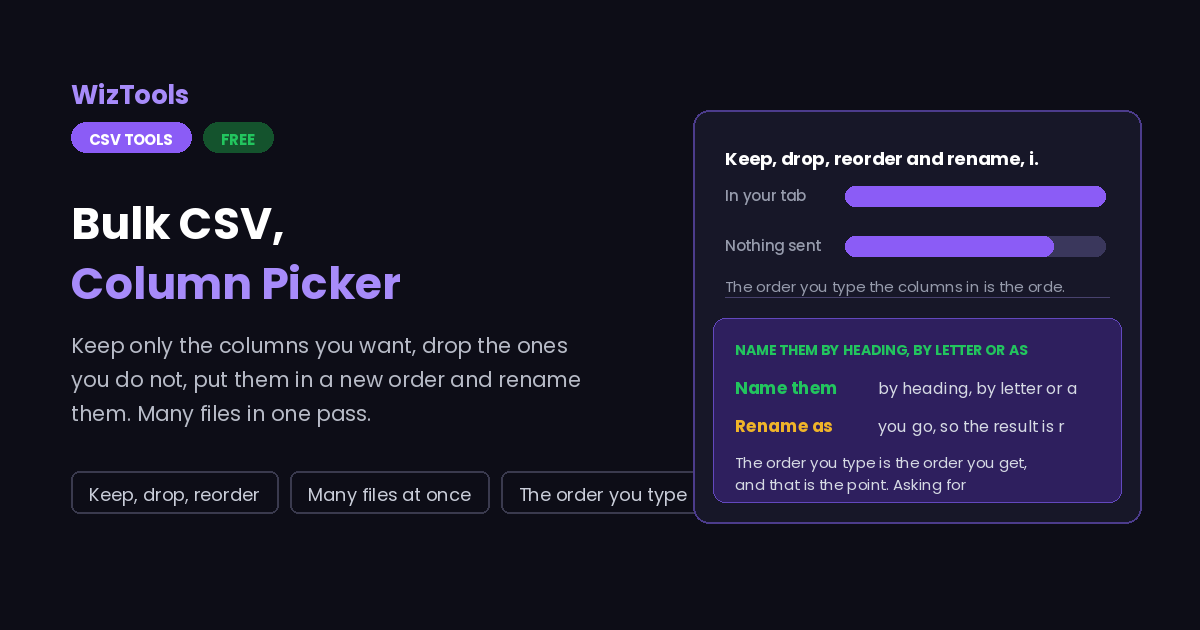
Free Forever Nothing Uploaded Keep, drop, reorder Many files at once
Free Online CSV Column Extractor, Remover and Reorderer
Share this tool
Advertisement Slot (Top Banner) Google AdSense Unit • Responsive Banner
Bulk CSV Column Picker Your file is read inside this tab. Nothing is uploaded anywhere.
Drop the CSV files you want reshaped Columns are matched by name, so files with them in a different order still work. Choose files Up to 25 MB per file. Nothing is uploaded.
0%
Or paste it
Reading the file
What to do
The columns Separate with commas. A range such as 2-5 works, and the order you type is the order you get.
New names One name per kept column, in the same order. Leave a gap between two commas to keep that heading.
If a column is missing
Writing the result

0 files 0 columns in 0 columns out 0 rows

Every column
Nothing to show yet.
Chosen columns
Nothing to show yet.
Buy Us A Coffee

Enjoying WizTools123? Help keep our server infrastructure 100% free and open for everyone.

Buy Us A Coffee
Sponsored Content (Below Tool) Google AdSense Placement

How to Extract or Remove CSV Columns

A few steps, and nothing is uploaded.

1
Drop the files in One or many. The chips under the box show every column the current file has, with its letter.
2
Type the columns you want By heading, by letter or as a range. Click a chip to add it. The order you type them in is the order they come out in.
3
Rename them if you need to One new name per kept column, in the same order. Leave a gap between two commas to keep that column original heading.
4
Download, or take the zip One file as a CSV, or every file reshaped the same way as a single zip.

What to Know About Picking Columns

How columns are named, and what happens when one is missing.

The order you type is the order you get, and that is the point. Asking for "email, id" gives you email first even though id comes first in the file. A tool that keeps the file original order makes you do a second pass to reorder, which is the slow part of the job.
Columns can be named three ways and all of them work together. A heading, a spreadsheet letter such as D, or a position number. Ranges work on positions, so 2-5 means the second to the fifth column. Mixing them in one list is fine, which helps when some columns have no heading at all.
Renaming is matched by position in your list, not by the old name. The first new name applies to the first column you asked for. Leaving a gap between two commas keeps that heading as it was, so you can rename the third of five without typing the other four.
A missing column is a real decision in bulk. If one file in twenty has no phone column, leaving it out means that file has fewer columns than the rest, which breaks anything combining them afterwards. Adding it as an empty column keeps every output the same shape, which is usually what a later step needs.
Duplicate names in the result are left as they are. If you ask for the same column twice, or rename two columns to the same thing, you get exactly that. It is occasionally what people want, and the cleaner can number repeats if it is not.
Nothing is reformatted. Columns are selected and moved; the values inside them are passed through untouched, so a leading zero or a currency symbol survives.

Key Features & Capabilities

What this tool does, and what it deliberately does not.

Keep, drop or promote Keep only what you name, drop what you name, or move chosen columns to the front and keep the rest.
Your order, not the file order The sequence you type is the sequence you get, so extracting and reordering are one step.
Rename as you go One new heading per kept column, with gaps allowed so you only rename the ones you care about.
Clickable column chips Every column in the current file shown with its letter, so you can build the list by clicking.
A folder at a time Matched by name across every file, with a choice of what to do when one file lacks a column.
Nothing is uploaded Wide exports full of personal data are reshaped inside this tab and never sent anywhere.

About the CSV Column Picker

Exports are generous. A system that holds forty fields about a customer will happily give you all forty, when the thing you are feeding wants six of them in a particular order. Doing that in a spreadsheet means deleting thirty four columns and dragging the rest around, which is tedious once and unthinkable twenty times.

The reordering is the part people underestimate. Extracting columns is easy; getting them out in the order the next system expects is the actual requirement, because imports are usually positional or at least fussy about what comes first. Treating the list you type as the output order means one pass does both jobs.

Bulk brings one extra decision that single file tools never face. When twenty exports mostly have a phone column and one does not, leaving it out of that one file produces a set of files with different shapes, and whatever combines them afterwards either fails or silently misaligns. Adding the missing column as an empty one keeps every file identical in shape, which is why that choice is offered rather than assumed.

Frequently Asked Questions

Order, ranges, renaming and missing columns.

Yes, that is the default behaviour. The order you type the names in is the order the columns come out in, so extracting and reordering happen in the same pass.

By its spreadsheet letter, such as D, or by its position number. Both work in the same list as headings, and a range such as 2-5 works on positions.

By position in your list. The first new name applies to the first column you asked for. Leaving an empty gap between two commas keeps that column original heading, so you can rename just one of several.

Whichever you choose. Leaving it out means that file has fewer columns than the others; adding it as an empty column keeps every output the same shape, which is usually what a later step needs.

Yes, switch the mode to drop. That is easier when you want thirty eight of forty columns, and the remaining ones keep their original order.

No. Columns are selected and moved, and the values inside them are passed through exactly as they were read.

Other CSV Tools

Advertisement Slot (Bottom Banner) Google AdSense Unit • Responsive Banner