WizTools123
Free Online Tools

Tool Categories


Video Tools New Tool

Free Online Video to JPG Converter With No Encoder Download

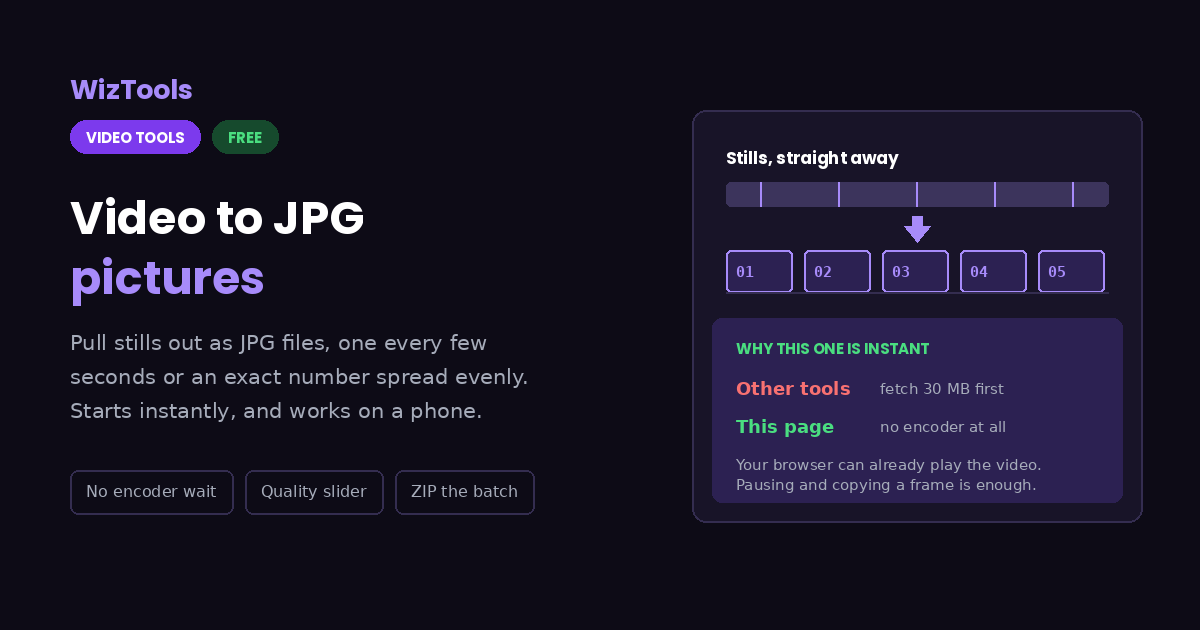
Pull still pictures out of a video as JPG files, free and without uploading anything. This page needs no encoder at all, so the first picture appears at once instead of after a thirty megabyte wait. Choose one every few seconds, or an exact number spread evenly across the whole video.
Free Forever Nothing Uploaded No Encoder Wait Numbered Batch
Free Online Video to JPG Converter With No Encoder Download
Share this tool
Advertisement Slot (Top Banner) Google AdSense Unit • Responsive Banner
Take JPG pictures from a video Drag your video here to pull still pictures out of it as JPG files. No encoder is downloaded and nothing is uploaded. Select a Video MP4, MOV, WebM, MKV, AVI and more • best under 300 MB • nothing is uploaded
0:00.000 / 0:00
Which frames to take
seconds
spread evenly
90
Ninety is indistinguishable from the original for almost everything. Below sixty you will see it.
Picture width

Output
.jpg

Your pictures

These files only exist in this tab. Save the ones you want before you close the page, because there is no copy of them anywhere else.

Buy Us A Coffee

Enjoying WizTools123? Help keep our server infrastructure 100% free and open for everyone.

Buy Us A Coffee
Sponsored Content (Below Tool) Google AdSense Placement

How to Get JPG Pictures From a Video

Drop it, choose how many, download them all.

1
Drop your video in It opens straight from your disk and starts playing in the page. Nothing is sent anywhere and no encoder is fetched.
2
Choose how the frames are picked One picture every so many seconds when you want even coverage of a long video, or a set number spread evenly when you know exactly how many you need.
3
Set the quality and width Ninety is a safe quality for almost anything. Narrowing the pictures is the quickest way to keep a large batch manageable.
4
Check the count above the button It tells you exactly how many files you are about to get, which is the number people are surprised by when they ask for one picture every tenth of a second.
5
Download them Each picture gets its own row and button, and the zip button gives you the whole batch at once with the numbers in order.

What to Know About Pulling Frames Out

Including the things this tool cannot do.

Nothing is downloaded to make this work. The frames come out of the video your browser is already able to play, so the first picture appears almost immediately instead of after a thirty megabyte wait.
Your browser has to be able to play the video. That covers MP4 and WebM everywhere, and MOV on most machines. Formats it cannot open, like many AVI files, have to be converted first, and the page says so rather than handing you blank pictures.
JPG throws some detail away, by design. At quality ninety you will not see it on a photograph. On screen recordings, text and sharp graphics you might, and PNG is the better choice for those.
Three hundred pictures is the ceiling here. Beyond that a browser starts to struggle handing them all back at once. A longer video with a bigger gap, or a trimmed piece, gets you what you need without hitting it.
The work happens on your own machine. Your video is opened by this page, not sent anywhere. That is why there is no upload bar, no queue and no waiting for a server. It is also why a big file leans on your own processor: nothing is being done for you somewhere else.
The first run downloads the engine, later runs do not. Video work needs a real encoder, and that is a thirty megabyte download the first time you press the button. Your browser keeps it, so the second video starts straight away.
Leave the tab open. All of the work is in this page, so closing it or navigating away stops the job halfway. On a phone, switching apps can do the same thing, because the system is allowed to pause a background tab.

Key Features & Capabilities

What this tool does, and what it deliberately does not.

No encoder to download Frames are read straight from the video, so this starts working the moment you drop a file in.
By interval or by count One every so many seconds for even coverage, or an exact number spread across the whole video.
Quality and width you control A real quality slider rather than a hidden default, and four widths for keeping a big batch sensible.
Numbered so they stay in order Names are padded with zeros, so picture 2 never sorts after picture 10 in your file manager.
The video never leaves your device Everything happens in the page. There is no upload, no account and no copy of your footage anywhere else.
It cannot open what your browser cannot play Some AVI and older formats have to be converted to MP4 first. The page tells you instead of producing empty pictures.

About the Video to JPG Converter

Pulling still pictures out of a video is one of the few jobs in this category that does not need a video encoder at all, and this page is built around that fact. Your browser can already decode and display the file you dropped in. Asking it to pause at a particular moment and copy what it is showing onto a canvas is enough to produce a picture, and that costs nothing but the time it takes to seek.

The practical difference is large. Most browser based tools begin by downloading about thirty megabytes of WebAssembly before they can do anything, and hold the whole video in memory while they work. Here the first picture appears almost immediately, only one frame is in memory at a time, and the job runs on phones where the heavier approach simply runs out of room.

There are two ways to choose which frames you get. A fixed interval gives even coverage of a long recording and is what you want for contact sheets or for checking what happens over time. A set number spread across the video is better when you need exactly twelve pictures for something, and each one is taken from the middle of its share rather than the edge, which quietly avoids the black frame that so many videos open on.

The one thing this approach cannot do is open a video your browser cannot play. MP4 and WebM work everywhere, MOV works on most machines, and several older AVI files work nowhere. Rather than handing you a folder of blank images, the page checks first and tells you to convert the file, which the converter here will do.

Frequently Asked Questions

Turning a video into still JPG pictures.

Set the gap to match the frame rate, so a twenty five frame per second video needs 0.04 seconds. Be careful what you ask for: a one minute clip at that rate is fifteen hundred pictures, and the tool stops at three hundred because a browser cannot hand back more in one go.

Because it does not use a video encoder at all. Most browser tools download a thirty megabyte WebAssembly build of FFmpeg first. Taking still pictures does not need one, since your browser can already decode and display the video.

JPG for photographic footage, where the files are far smaller and the loss is invisible. PNG when the frames contain text, screen recordings, line art or anything you will edit further, because it keeps every pixel exactly.

Yes, unless you choose a narrower width. Same means exactly the video resolution, so a 1080p video gives 1920 by 1080 pictures.

Many videos genuinely start on a black frame. When you ask for a set number spread evenly, each picture is taken from the middle of its share rather than the very edge, which avoids the problem. With a fixed interval the first one lands at zero, so nudge the gap slightly if it bothers you.

Yes, whenever there is more than one picture. The zip keeps the numbering, so they stay in the order they appear in the video.

Every Other Video Tool

76 more tools in this set. All free, all in your browser.

Advertisement Slot (Bottom Banner) Google AdSense Unit • Responsive Banner