Free Online Text Diff and Compare, Line by Line, Word Level Highlights
Put two versions of a text side by side and see exactly what changed. Lines that were added, removed or left alone are marked, and inside a changed line the words that actually differ are highlighted. Whitespace and case can be ignored when the difference you care about is the wording, not the spacing.
Free Forever Nothing Uploaded Side by Side Word Level
Share this tool
Advertisement Slot (Top Banner)Google AdSense Unit • Responsive Banner
Text Diff & Compare Everything happens in this tab. Nothing you paste is sent anywhere.
The first version
0 characters0 words0 lines
The second version
Drop a second .txt file on this box as well.
Ignore
Show
0 lines added •
0 removed •
0 unchanged
These two are large enough that a full line by line match would need more memory
than is sensible, so they were compared position by position instead. Lines that
only moved will show as changes.
Buy Us A Coffee
Enjoying WizTools123? Help keep our server infrastructure
100% free and open for everyone.
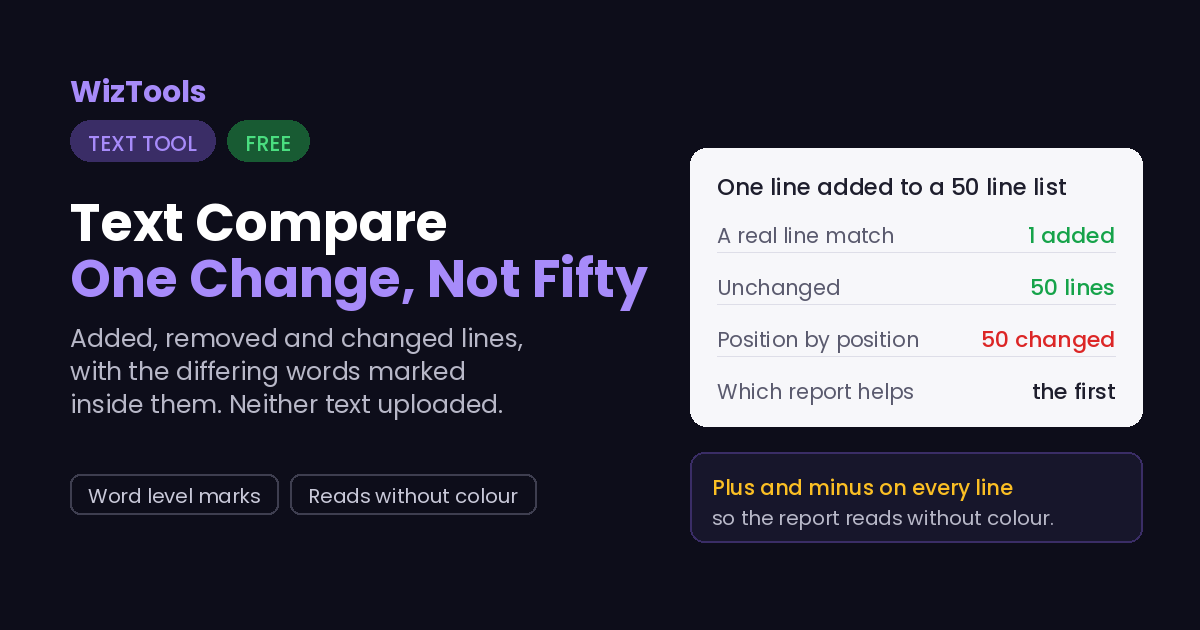
And not fifty, which is what a simple comparison gives you.
Put a new line at the top of a fifty line list and compare the two lists position by
position: line one differs, line two differs, and so on to the end. Every line is
reported as changed, and the report is useless. What actually happened is that one
line was added and forty nine moved down by one.
Getting that right means finding the longest run of lines the two versions still share,
and treating everything outside it as added or removed. That is what this page does,
and it is why an inserted paragraph shows as one green line rather than turning the
rest of the document red.
Colour is not the only signal here, and that is deliberate.
Around one man in twelve has some form of colour blindness, and the most common kind
makes red and green hard to tell apart, which is exactly the pair every diff tool uses.
Every line here also carries a plus, a minus or a blank in its own column, so the
report still reads correctly with no colour at all.
Very large pairs fall back to a simpler comparison, and the page says so.
Matching two texts properly needs a table with one cell for every pair of lines, so
a thousand lines against a thousand is a million cells and ten thousand against ten
thousand is a hundred million. Above four million cells the page compares position by
position instead and puts a warning above the result, rather than freezing your tab
or quietly giving you a worse answer.
Where Your Text Goes
Nowhere. And you can check that yourself.
Comparing two documents means handing over two at once, and this page receives neither.
The text is read and changed by your own browser. Press F12, open the Network tab,
and use the tool: the page fetches its own code and nothing else. Or load the page,
turn off your wifi, and carry on working. It still runs, because there was never a
server in the middle.
How to Compare Two Texts
Four steps, and your original text is never changed.
1
Paste the original on the leftOr open a .txt file, or drop one on the box. Nothing is uploaded either way.
2
Paste the changed version on the rightThe comparison appears underneath straight away. Swap the two if you pasted them the wrong way round.
3
Read the marks, not just the coloursA plus is a line that was added, a minus one that was removed, and inside a changed line the differing words are highlighted.
4
Take what you needSwitch to only what changed to hide the untouched lines, or copy just the added or just the removed lines in one click.
What to Know Before You Compare
Including the things this tool cannot do.
This compares lines, not sentences. A paragraph written as one long line counts as a single line, so changing one word in it marks the whole line as changed and highlights the word inside it. If you want sentence by sentence marks, put each sentence on its own line first, which the Remove Line Breaks tool can do for you.
Ignoring spacing changes what counts as different, not what you get back. With it switched on, two lines that differ only in indentation or double spaces are treated as the same line. The text shown is still exactly what you pasted; nothing is trimmed or rewritten in the result.
A line that moved is usually reported as one removal and one addition. Proper move detection is a different and much harder problem, and tools that claim it often get it wrong in ways that are hard to notice. Here a block that shifted from the top to the bottom shows as gone from one place and added in the other, which is at least honest about what it knows.
Both texts stay in your browser, which matters more here than on most tools. People compare contracts, medical letters, code and drafts of things that are not public yet, and doing that on a site that uploads both versions means handing over two documents at once. Nothing here leaves the tab.
Key Features & Capabilities
What this tool does, and what it deliberately does not.
A real line matchOne added line shows as one addition, not as fifty changes.
Word level highlightsInside a changed line, only the words that actually differ are marked.
Marks as well as colourPlus, minus and blank in their own column, so it reads without colour too.
Hide what did not changeSwitch to only the differences when the document is long.
Copy one sideTake just the added lines or just the removed ones in a single click.
Nothing uploadedBoth versions stay in your tab. Neither is sent anywhere.
About the Text Diff & Compare
Two versions of the same thing and a question: what actually changed. It comes up with contracts, with copy that came back from a client, with a config file that worked yesterday, and with anything a second person has touched. Reading both side by side and spotting the difference by eye works for a paragraph and fails completely for a page.
This does the comparison properly. It finds the lines the two versions still share and marks everything else as added or removed, so inserting a line at the top does not turn the rest of the document into a wall of changes. Inside a line that changed, it goes one level further and highlights the individual words that differ.
The parts that usually get skipped are here too: a symbol on every line so the report works without colour, a switch to hide everything that stayed the same, and buttons to lift out just the added or just the removed lines. And both versions stay in your browser, which is the whole reason to use a page like this for a document you have not published.
Frequently Asked Questions
What the marks mean, and where a line based comparison stops helping.
A green line marked with a plus is in the second version but not the first. A red line marked with a minus is in the first but not the second. An unmarked line is in both. The symbols are there so the result still makes sense if you cannot easily tell red from green.
Not directly. It compares plain text, so open the document, select the text and paste it in. For a PDF, the Extract Text tool in PDF Tools will get the text out first. Comparing the files themselves would mean reading their formatting as well, which is a different job.
Because the paragraph is one line. The comparison works line by line, and a paragraph with no line breaks inside it is a single very long line. The changed words inside it are still highlighted, and putting each sentence on its own line first will give you finer marks.
No. Those switches only affect what counts as a difference. The lines shown are exactly what you pasted, and the copy buttons give you the original text, not a normalised version of it.
A full comparison needs a table of one cell per pair of lines, so it is capped at four million cells, which is around two thousand lines against two thousand. Above that the page compares position by position and tells you it has done so. A file opened from disk is capped at 5 MB.
Every Other Text Tool
24 more tools in this set. All free, all in your browser.