WizTools123
Free Online Tools

Tool Categories


Audio Tools New Tool

Free Online Voice Recorder That Never Uploads

Record audio in your browser free, with nothing uploaded at any point. A live level meter while you record, browser echo cancelling and noise suppression you can switch off, and the result saved in whichever format you choose rather than the browser's own.
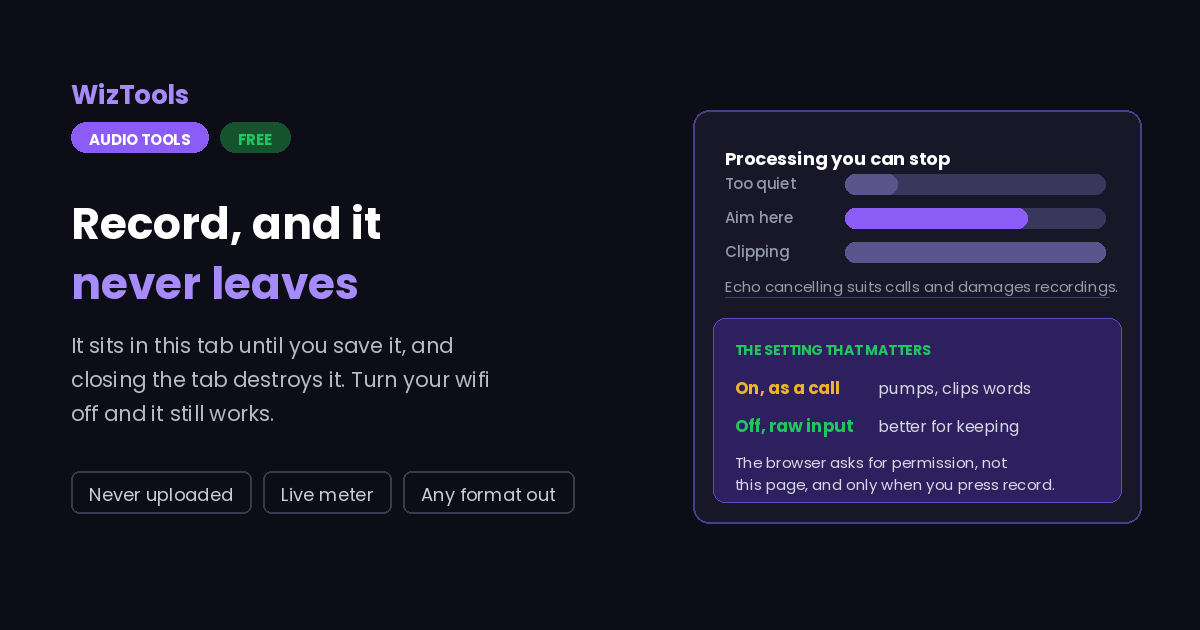
Free Forever Never Uploaded Live Level Meter Processing You Can Turn Off
Free Online Voice Recorder That Never Uploads
Share this tool
Advertisement Slot (Top Banner) Google AdSense Unit • Responsive Banner
Your recording stays in this page. It is never uploaded, and there is no server involved at any point. It lives in this tab's memory until you save it, and closing the tab destroys it. Your browser, not this page, asks for permission to use the microphone, and you can take that permission back at any time from the icon in the address bar. If you want to check: turn your wifi off and record anyway. It still works.
Record
0:00
Press the button to start. Your browser will ask for permission the first time.
-
Aim for the meter to sit in the green and touch the amber on your loudest moments. If it is reaching the red, you are too close or the input is too high; if it barely moves, the other way round.
Before you start
The list fills in after you have given permission once.
What you recorded
Length-
Loudest moment-
Sample rate-
Channels-

Output
Only used when the output is WAV. The compressed formats have their own.
.wav

Your recording

These files only exist in this tab. Save the ones you want before you close the page, because there is no copy of them anywhere else.

Buy Us A Coffee

Enjoying WizTools123? Help keep our server infrastructure 100% free and open for everyone.

Buy Us A Coffee
Sponsored Content (Below Tool) Google AdSense Placement

How to Record Your Voice in a Browser

Press record, speak, save. Nothing leaves the page.

1
Press the record button Your browser asks for permission the first time. Nothing has happened before that point, and the request comes from the browser rather than from this page.
2
Watch the meter while you talk Aim for the green, touching amber on the loudest parts. Red means too close or the input is too high, and clipped speech cannot be repaired afterwards.
3
Press it again to stop The waveform appears and you can play it back straight away, or throw it away and start again.
4
Save it in the format you want WAV keeps everything and needs no encoder. MP3 is smaller and fetches the encoder once.

What Happens to Your Recording

The part that matters most on a page like this.

The recording never leaves this page. There is no upload and no server. It sits in this tab's memory until you save it to your own disk, and closing the tab destroys it. You can verify this by turning your wifi off before recording.
Your browser asks for permission, not this page. The request only happens when you press record, not when the page loads, and you can withdraw it at any time from the icon in the address bar. If you have blocked it before, the page cannot ask again until you allow it there.
Browser processing helps calls and hurts recordings. Echo cancelling and noise suppression are designed for conversation, and on a spoken recording they can pump, cut words short or make quiet passages disappear. They are on by default because that is what most people expect; turn them off for anything you care about.
A long recording uses real memory. Everything is held in this tab until you save it, at roughly ten megabytes a minute in memory. Twenty minutes is comfortable on a laptop, an hour is pushing it, and a phone will manage much less.
The work happens on your own machine. Your file is opened by this page, not sent anywhere. That is why there is no upload bar, no queue and no waiting for a server. It is also why a long recording leans on your own memory: nothing is being done for you somewhere else.
Nothing is uploaded, and that is checkable. Turn your wifi off after the page has loaded and every one of these tools still works, which would be impossible if a server were doing the job.
Leave the tab open. All of the work is in this page, so closing it or navigating away stops the job halfway. On a phone, switching apps can do the same thing, because the system is allowed to pause a background tab.

Key Features & Capabilities

What this tool does, and what it deliberately does not.

Never uploaded The recording stays in the tab until you save it to your own disk. Turn your wifi off and it still works.
A meter you can act on Live level while you record, so you find out about clipping before the take rather than after it.
Processing you can turn off Echo cancelling and noise suppression suit calls and damage recordings. Both can be switched off.
Choose the microphone When more than one is available, pick the one you mean rather than whatever the system defaults to.
Any format out WAV, MP3, M4A, OGG or FLAC, rather than whatever shape the browser happened to record in.
Hear it before you keep it Play it back in the page, and start again if it was not right.

About the Audio Recorder

Recording in a browser has been possible for years and is still surrounded by suspicion, which is entirely reasonable. A page asking for your microphone is asking for a great deal, and most pages that do it are sending the result somewhere. This one is not, and rather than burying that in a privacy policy it is written at the top of the page, where it belongs, along with a way to check it: turn your wifi off and record anyway. Everything works, because nothing was ever going anywhere.

What actually happens is that the browser hands this page a live stream from the microphone, the page collects it in memory, and when you press save your browser writes a file to your disk. The recording exists in one place, your own tab, and closing the tab destroys it. That is the whole architecture, and it is why there is no account, no limit and no queue.

The permission request is deliberately not made when the page loads. A microphone prompt appearing the instant you arrive is alarming, and a lot of people click block, which is then awkward to undo. Here it happens when you press record, which is the moment it makes sense.

The setting most worth understanding is the browser processing. Echo cancelling, noise suppression and automatic gain control are all designed for video calls, where the priority is that nobody hears themselves and everyone stays intelligible. On a recording they behave quite differently: the gain control breathes in the gaps, the noise suppression removes room tone and often the tails of words with it, and quiet passages can disappear altogether. They are on by default, because that is what a browser does and what most people expect, but for anything you care about the raw input is better, and it is one setting away.

The last piece is the format. Browsers record in whatever shape they prefer, which is usually WebM with Opus in Chrome and MP4 with AAC in Safari, and neither is what most people want to end up with. Rather than handing you that, the recording is decoded and written out in whichever format you chose, so the file you get is the file the page said you would get. WAV is exact and downloads nothing at all.

Frequently Asked Questions

Privacy, permissions, quality and length.

No. It is held in this tab's memory and written to a file by your own browser when you press save. There is no server involved at any point, and you can check that by turning your wifi off before recording: everything still works.

Because browsers require it for microphone access, which is a good rule. The request comes from the browser rather than from this page, it only happens when you press record, and you can withdraw it at any time from the icon in the address bar.

For anything that matters, yes. Echo cancelling and noise suppression are designed for video calls, where cutting out a bit of speech is better than feedback. On a recording they can pump, clip the starts of words, and make quiet passages disappear entirely. They are on by default because that is what most people expect, not because it is better.

It depends on your memory, because everything is held in this tab until you save. Around ten megabytes a minute is the rough cost. Twenty minutes is comfortable on a laptop, an hour is pushing it, and a phone will manage considerably less before the browser gives up.

Whatever the microphone and system provide, typically 44,100 or 48,000 samples a second. You choose the format it is saved in afterwards, which is separate: WAV keeps exactly what was captured, and MP3 or the others compress it.

The recording is gone. It only exists in this page, which is the same fact that makes it private. Save anything you want to keep before you navigate away.

Every Other Audio Tool

32 more tools in this set. All free, all in your browser.

Advertisement Slot (Bottom Banner) Google AdSense Unit • Responsive Banner