Free Online Bulk Image Compressor, Compress Multiple Pictures at Once
Select multiple pictures at once and make the whole batch smaller without making them look bad. Choose a quality level, aim for an exact file size like 200 KB, or just resize, and see the before and after bytes for every picture. Compress as many files at once as your device can handle and download them one by one or as a ZIP.
Free Forever Nothing Uploaded Aim For a File Size Thirty at Once
Share this tool
Advertisement Slot (Top Banner)Google AdSense Unit • Responsive Banner
Bulk Image Compressor
Nothing loaded yet
Drop pictures hereAs many as you like. They are opened by your browser, not by a server.
Choose pictures No limit on how many • 40 MB each • nothing is uploaded
How much smaller?
Quality
80
PNG is lossless and ignores this slider entirely. Only the size on screen will change it.
Eight qualities are tried and the largest one that fits is kept. If nothing fits, the
tool says so rather than handing you an oversized file.
Size on screen — usually saves more than quality
Make it no larger than
w
h
Leave one at zero to let it follow the other. Shape is always kept, and a picture is
never enlarged to meet these numbers.
Output
Save as
Background
JPEG has nowhere to store transparency.
Name suffix
Goes before the extension.
Add pictures to get started.
Ready to download
Picture
Before
After
Saved
Everything together
—
—
—
Are you sure?
Buy Us A Coffee
Enjoying WizTools123? Help keep our server infrastructure
100% free and open for everyone.
Quality, or Size on Screen: Which Actually Saves More
Everyone reaches for the quality slider. On a real photograph it is the weaker of the two.
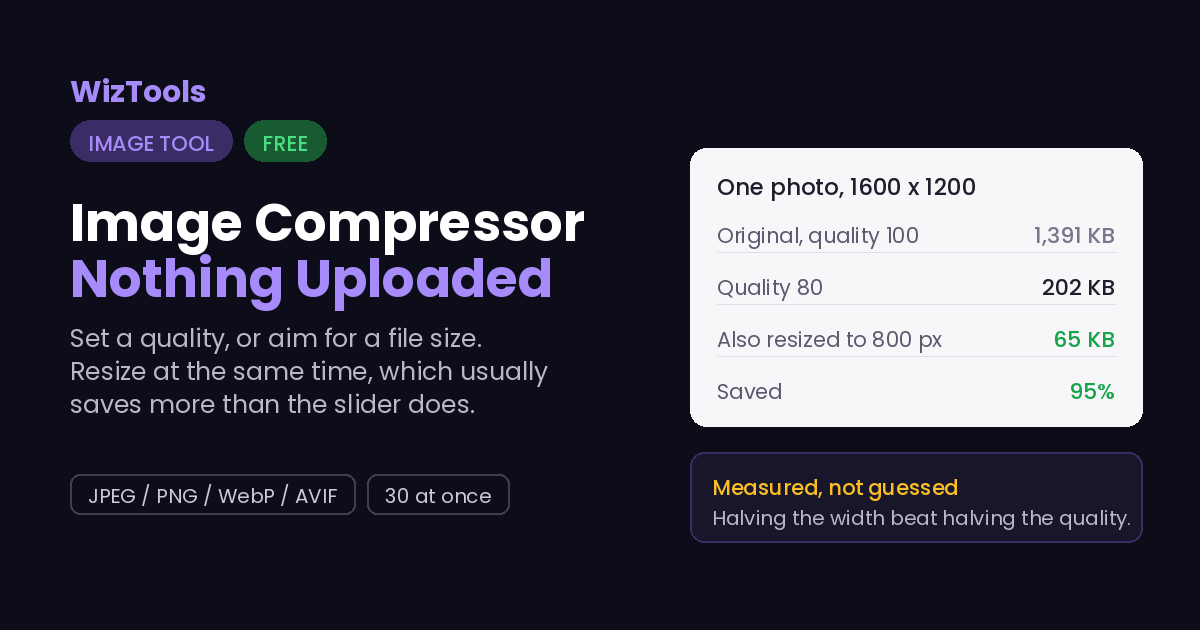
We took one 1600 by 1200 photograph, saved it as a JPEG at quality 80, and got 202 KB. Then we changed
one thing at a time and measured what came out. Everything below starts from that same 202 KB.
What we changed
Which setting
File became
Saving
Down to 1200 pixels wide
Size on screen
122 KB
40% smaller
Down to 800 pixels wide
Size on screen
65 KB
68% smaller
Down to 400 pixels wide
Size on screen
25 KB
88% smaller
Quality 80 down to 60
Quality
124 KB
39% smaller
Quality 80 down to 50
Quality
108 KB
46% smaller
Quality 80 down to 40
Quality
95 KB
53% smaller
Halving the width beat halving the quality, and it was not close. Going from 1600 to 800 pixels
took 68 percent off the file while leaving the quality untouched. Dragging the quality from 80 down to
40, which is low enough to see the damage, took only 53 percent. If a picture is going to be looked at
800 pixels wide, make it 800 pixels wide first and you may not need the slider at all.
What each quality step costs you
JPEG quality
File size
Compared with maximum
100wasteful
1,391 KB
the starting point
95wasteful
569 KB
59% smaller than 100
90
340 KB
76% smaller than 100
85
251 KB
82% smaller than 100
80our default
202 KB
85% smaller than 100
70
151 KB
89% smaller than 100
60
124 KB
91% smaller than 100
50visible
108 KB
92% smaller than 100
The interesting row is the top one. Going from quality 95 to quality 100 more than doubled the file,
from 569 KB to 1,391 KB, and JPEG at 100 is still not lossless. That is why the slider on this page
stops at 95: the last five points buy nothing you can see.
Which Format for Which Picture
Choosing the wrong one costs far more than any slider can save back.
The picture
As JPEG
As PNG
As WebP
What that means
A photograph1600 x 1200, from a camera
202 KB
2,948 KB
112 KB
PNG is 15 times bigger for no gain at all
A chart or logoflat colour, hard edges, few shades
23 KB
2 KB
2 KB
JPEG is 11 times bigger, and smudges the edges
JPEGBest for photographs. Opens everywhere, including on a fifteen year old machine. Cannot hold transparency.
WebPRoughly 45 percent smaller than JPEG at the same quality in our test. Every current browser reads it. Some older desktop software still does not.
PNGLossless, and for a photograph that means enormous. Right for flat colour, screenshots and logos. Wrong for a camera picture.
AVIFThe smallest of the four, and the slowest to make. Not every browser can write it, so this option turns itself off when yours cannot.
Is It Safe to Compress Photos Online?
A fair question, and the answer is checkable.
What happens to your picture
Most compressor sites
This page
Where the work is done
On their server
In your browser
Who else can see the picture
Whoever runs the server
Nobody, it never left
What happens to the GPS location
Reaches them before it is stripped
Never leaves your device
Can you verify the claim
No, you have to trust it
Yes, see below
Check it yourself. Press F12 to open your browser tools and go to the Network tab. Drop a
picture in and compress it. You will see the page fetch its own code and nothing else: your file is
never sent. For a stronger test, load this page, turn off your wifi, and compress a photo anyway.
It still works, which would be impossible if a server were doing the job.
How to Compress Multiple Images
Drop, choose, download. Your originals are never touched.
1
Drop multiple pictures inSelect many files at once, one or thirty, dragged in or picked from your device. They are opened by your browser, not sent anywhere. You can watch that happen in your browser tools.
2
Say how small you want themMove the quality slider, or give a file size to aim for. If you are not sure, leave it at 80, which is where most of the saving already is.
3
Cut the size on screen tooThis is the part people skip and it usually saves more than the quality slider. A picture that will be shown 800 pixels wide does not need to be 4000.
4
Choose a format, or keep the one you haveWebP was 45 percent smaller than JPEG in our test. JPEG opens absolutely everywhere. PNG is only right for flat colour.
5
Press the button and check the numbersEvery picture shows what it was, what it became and how much was saved, so nothing is taken on trust.
6
Download one, or all of them as a ZIPYour originals are untouched. Nothing on this page can change a file already on your device.
What to Know Before You Compress
Including the things this tool cannot do.
Everything except the picture itself is dropped. The camera, the lens, the date, the settings and the GPS location all go. For a photo you are putting online that is a privacy win worth having. If you needed the shooting date, copy it out before you compress, because this tool cannot put it back.
Compressing a PNG photograph makes it bigger, not smaller. PNG is lossless, so there is nothing to throw away, and a browser writes plainer PNG files than the program that made the original. In our test a PNG came back 5 to 14 percent larger. The tool warns you when it sees this. The real fix is to change the format to JPEG or WebP.
Re-saving a JPEG does not keep damaging it. This is worth saying because the opposite is repeated everywhere. We saved the same picture at quality 80 six times over: the difference between the first save and the sixth was an average of zero and a worst pixel of 4 out of 255. The loss happens once, at the first save. What does cause fresh damage each time is changing the quality or the size between saves.
Saving at a higher quality than the file already has adds nothing. We took a quality 60 picture and saved it at 95. The file went from 124 KB to 261 KB and was no closer to the original than before. Detail that has been thrown away cannot be fetched back, so all you buy is a bigger file.
Transparent parts turn solid when you move to JPEG. JPEG has no way to store transparency, so the see-through areas take whatever colour sits behind them, and with no instruction that colour is black. The tool asks you for a background whenever the format you picked cannot hold transparency, and defaults to white.
A file size target is a search, not a promise. The tool tries eight qualities and keeps the largest one that still fits under your limit. If even the lowest quality is over the limit it tells you so rather than quietly handing you an oversized file. When that happens, reduce the size on screen as well, which is far more effective than pushing the quality down further.
Some pictures cannot be made smaller. A file that has already been compressed hard has nothing left to give, and asking for quality 80 on something saved at quality 50 will make it larger. The list shows a bigger result in red rather than hiding it, and you can simply keep your original.
Thirty pictures, 40 MB each, and that is your device deciding. Everything runs in your browser, so the ceiling is your own memory rather than an upload allowance. A very large picture needs several times its file size in RAM while it is open, which is why the limit exists at all.
Key Features & Capabilities
What this tool does, and what it deliberately does not.
Nothing is uploadedYour pictures are opened by your own browser. Turn off your wifi after the page loads and it still works, which would be impossible if a server were doing the job.
Quality or file sizeSet the quality yourself, or give a size limit and let the tool search for the quality that fits under it.
Resize at the same timeThe setting that usually saves the most. Presets for a 4K screen, full HD, article width, email and thumbnails, or your own maximum.
Four output formatsJPEG, WebP, PNG and AVIF. Options your browser cannot actually write are switched off rather than quietly falling back to something else.
Bulk: thirty at onceSelect multiple pictures at once, or drop a whole folder in. Every picture shows its own before, after and saving, and the totals are added up at the bottom.
Download as a ZIPOne button for the lot. The ZIP is built in your browser too, and the library for it is only fetched when you press the button.
Sideways photos come out straightPhone pictures carry a rotation flag that half of all software ignores. This page checks how your browser behaves and corrects for it either way.
It tells you when it failsA result that came out larger is shown in red with the real number, and a size target that could not be reached is said out loud.
About the Bulk Image Compressor
Most image compressors give you one slider, one file and a promise. This one takes a whole batch: select multiple pictures at once and every setting applies to all of them. This one gives you the three settings that actually decide the file size, tells you which of them matters most, and shows you the measurements it is basing that on. There is no account, no queue, no watermark and no upload.
The measurements on this page were taken rather than guessed. A 1600 by 1200 photograph was put through the JPEG, PNG and WebP encoders at every quality step, then resized and put through again, and the file sizes were recorded. That is where the numbers in the tables come from, and it is also why one very common piece of advice is missing: we could not reproduce it. Saving a JPEG over and over at the same quality did not keep degrading it. The damage happened at the first save and then stopped.
The single most useful thing on this page is the second table. Almost everyone reaches for the quality slider and leaves the picture at its full size, and that is the wrong way round. Halving the width of that test photograph took 68 percent off the file. Dropping the quality from 80 all the way to 40, which is low enough to see, took only 53 percent. If your picture is going to be looked at 800 pixels wide, making it 800 pixels wide will beat any amount of slider dragging.
Everything happens inside your browser using the canvas that is already built into it. That has one consequence worth knowing about: re-drawing a picture keeps the pixels and nothing else, so the EXIF block with the camera model, the timestamp and the GPS coordinates does not survive. For anything heading to the public internet that is a feature. For a family archive it is not, and you should keep your originals.
Frequently Asked Questions
Everything worth knowing before you shrink a picture.
No, and you can check rather than trust us. Press F12, open the Network tab, and compress something: you will see the page fetch its own code and nothing else. For a stronger test, load the page, disconnect from the internet, and compress a picture anyway. It still works. That is only possible because the work is happening on your own machine.
Eighty is the honest default. On our test photograph quality 80 gave 202 KB against 1,391 KB at maximum, and the difference is hard to see at normal viewing size. Below about 60 you start to notice smudging around edges and in flat areas like skies. Above 90 the file grows quickly for very little visible return: going from 95 to 100 more than doubled the file.
Because PNG is lossless, so there is no detail to discard, and because a browser writes simpler PNG files than a dedicated image program does. Re-saving a PNG through any browser tool usually adds a few percent rather than removing any. If the picture is a photograph, the answer is to change the format to JPEG or WebP. If it is a logo or a chart, PNG is already the right choice and the file is probably about as small as it will get.
Not the way people usually mean. We saved one picture at quality 80 six times in a row and compared every version to the first: the average difference was zero and the worst single pixel was 4 out of 255. The loss is taken at the first save. What does cause new damage each time is changing something between saves, such as the quality or the dimensions, because that forces the picture to be re-drawn rather than simply re-encoded.
You can aim for it and the tool will get close underneath it, but no honest tool can hit an exact number. JPEG size depends on the content: a picture of a plain wall and a picture of a forest compress completely differently at the same setting. The tool tries eight quality levels and keeps the largest one that fits under your limit. If it cannot get under the limit at all it says so instead of handing you something oversized.
For anything going on a website, WebP. It was 45 percent smaller than JPEG at the same quality on our test photograph, and every browser released in the last several years can display it. Stay with JPEG when the file is going somewhere you do not control, such as an email attachment, a printing service or an older piece of desktop software, because JPEG opens absolutely everywhere.
It is removed. Redrawing a picture keeps the pixels and drops everything wrapped around them, so the camera model, the lens, the exposure settings, the timestamp and any GPS coordinates go with it. For a photograph you are publishing that is worth having, since a holiday snap can otherwise carry your home address. If you want that information kept, compress a copy and keep your original.
They survive in PNG, WebP and AVIF. They cannot survive in JPEG, because the format has no channel to store them in. When you pick a format that cannot hold transparency, the tool asks you what colour should sit behind the picture and defaults to white. Without that instruction a browser fills transparent areas with black, which is the reason people end up with a black box where a logo used to be.
Thirty, at up to 40 MB each. That limit is about your device rather than our capacity, since there is no server involved. A picture takes roughly four bytes of memory for every pixel while it is open, plus another copy for the canvas, so a very large file needs several times its own size in RAM. If your browser struggles, do them in two batches.
No. Nothing on this page can modify a file that is already on your device. Your pictures are read into memory, new files are built from them, and those new ones arrive through your browser download. The originals sit exactly where they were.
Every Other Image Tool
40 more tools in this set. All free, all in your browser.