WizTools123
Free Online Tools

Tool Categories


PDF Tools New Tool

Free Online Rotate PDF, Saved Into the File, Every Page or One

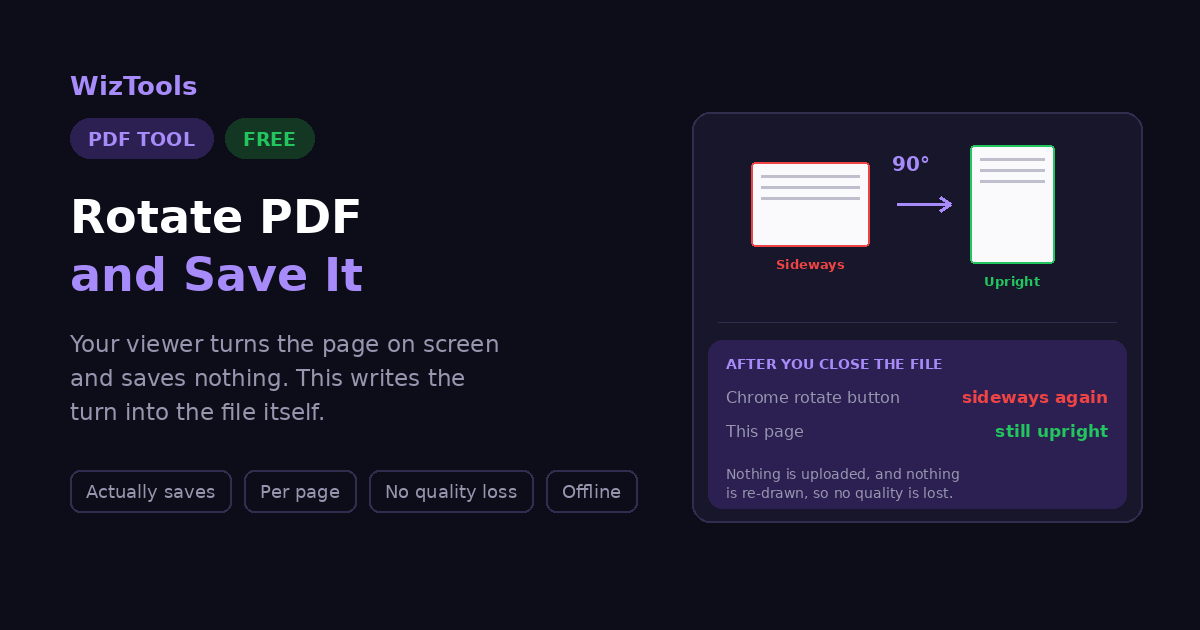
Turn sideways or upside down PDF pages the right way up and keep it that way. Rotate one page, a range, or the whole document in ninety degree steps, then download. Unlike the rotate button in a viewer, this writes the turn into the file, so the pages stay upright when you send or print them.
Free Forever It Actually Saves Nothing Uploaded No Quality Loss
Free Online Rotate PDF, Saved Into the File, Every Page or One
Share this tool
Advertisement Slot (Top Banner) Google AdSense Unit • Responsive Banner
Rotate a PDF Drag and drop your PDF here to turn its pages and save the rotation. It is opened by your browser, not by a server. Select a PDF File Up to 200 MB • 5,000 pages • nothing is uploaded
document.pdf
Which way?

Which pages?
Single pages, ranges, or words like odd, even and last.
Page previews

Previews are off by default because the page renderer is a large download. Turn them on and each page is shown at the angle it will be saved with, and you can click any single page to turn just that one.

Click a page to turn only that one.
Output
.pdf

Done
Buy Us A Coffee

Enjoying WizTools123? Help keep our server infrastructure 100% free and open for everyone.

Buy Us A Coffee
Sponsored Content (Below Tool) Google AdSense Placement

Why Your PDF Keeps Going Back to Sideways

It is not you. The rotate button in most viewers changes nothing.

  Rotate in Chrome or Preview Rotate on this page
Page looks right on screen Yes Yes
Still turned after you close it No Yes
Turned for the person you send it to No Yes
Prints the right way up Usually not Yes
What actually changed Your screen The file
The short version. A PDF page stores its own rotation as a number, and a viewer turns the page by that amount when drawing it. The rotate button in a viewer overrides that number for your screen only and writes nothing back. This page changes the stored number itself, so every viewer everywhere draws the page the way you left it.

What Each Turn Actually Does

Rotation is stored as 0, 90, 180 or 270. Adding a turn wraps around, which is why a page that was already rotated can surprise you.

Page is at Mode You press It ends at
0° Turn from here Right 90°
90° Turn from here Right 180°
270° Turn from here Right 0°
0° Turn from here Left 270°
90° Turn from here Upside down 270°
90° Set to exactly Right 90°
270° Set to exactly Right 90°
180° Set to exactly Reset 0°

The highlighted rows are the ones that catch people out. A scanner may have set a page to 90 without telling you, so it looks upright while the file thinks it is turned. Press right and you land at 180. If that happens, switch to Set to exactly this, which ignores whatever was there before.

Is It Safe to Rotate a PDF Online?

A fair question, and the answer is checkable.

What happens to your file Most PDF sites This page
Where the file is opened On their server In your browser
Who else can read it Whoever runs the server Nobody, it never left
What happens afterwards Deleted later, they say There is nothing to delete
Can you verify the claim No, you have to trust it Yes, see below
Check it yourself. Press F12 to open your browser tools and go to the Network tab. Drop a PDF in and rotate it. You will see the page fetch its own code and nothing else: your file is never sent. For a stronger test, load this page, turn off your wifi, and rotate a document anyway. It still works, which would be impossible if a server were doing the job.

How to Rotate a PDF and Save It

Drop, turn, download. Your original is never touched.

1
Drop your PDF on the page Drag it in or click to browse. It is opened by your browser, so nothing is uploaded and the page keeps working with the connection off.
2
Choose which way to turn Right, left or upside down. Right is a quarter turn clockwise and is what most sideways scans need.
3
Choose which pages Every page, only the wide ones, odd or even, or a list you type. The wide-pages option finds the sideways ones for you in a mixed document.
4
Check the preview before you commit Turn on page previews and you can see each page at its new angle, and click any single page to turn just that one.
5
Download the rotated file The rotation is written into the new document, so it stays turned when you send it, open it elsewhere or print it.

What to Know Before You Turn

Including the things this tool cannot do.

Your PDF viewer's rotate button does not save anything. Chrome, Edge and Preview all let you turn a page on screen, and none of them write it into the file. Send it or print it and the page is sideways again. This tool changes the file itself, which is the whole reason it exists.
Nothing is re-drawn, so nothing degrades. A PDF page carries a rotation value that viewers obey, and turning a page only changes that number. Text stays selectable, images keep their resolution, and the file size barely moves.
Only quarter turns are possible. The rotation value can be 0, 90, 180 or 270 and nothing in between. A scan that came out three degrees crooked cannot be straightened here, because that needs the page to be redrawn pixel by pixel. No tool that works losslessly can do it either.
Pages may already be rotated. Scanners often set a page to 90 without you knowing, so turning it right again lands you at 180 rather than 90. The preview shows each page's current angle, and the "set to exactly" mode ignores whatever was there before.
Your file never leaves this page. There is no upload, no server and no account. Open your browser tools, watch the network tab, and rotate a page: nothing goes out.
A password protected PDF has to be opened first. This tool will not try to break one, and it says so rather than failing silently. Unlock it, then come back.
A digital signature will not survive. That is how PDF signatures work rather than a limitation here: the signature covers the whole document, so any change to it, including a rotation, voids the signature.
Rotation and paper orientation are different things. Turning a page here fixes how it appears, but your printer may still apply its own "fit to page" or landscape setting on top. If a print comes out wrong after rotating, check the print dialog before blaming the file.
Your original file is not touched. The result is a new document that downloads separately, so a wrong turn costs you nothing except doing it again.

Key Features & Capabilities

What this tool does, and what it deliberately does not.

It actually saves Unlike the rotate button in a PDF viewer, the turn is written into the file, so it survives sending, printing and opening somewhere else.
Finds the sideways pages One option picks out every page that is wider than it is tall, which is exactly the handful you need to fix in a mixed scan.
Turn one page at a time Open the previews and click any page to rotate just that one. Each page shows the angle it is currently sitting at.
Two ways to turn Add a quarter turn to whatever the page already has, or set every chosen page to exactly the same angle regardless of where it started.
Nothing is re-drawn Rotation is a value the viewer obeys, not a new picture. Text stays selectable, images keep their resolution and the file size barely changes.
Nothing is uploaded All of it runs in your browser. No server, no account, no queue, and it keeps working offline once the page has loaded.
No watermark, no page cap The file you get carries nothing this site added, and there is no daily limit waiting to appear after the third document.
Says what it cannot do Crooked scans, locked files and digital signatures are all explained on this page rather than discovered when the result disappoints you.

About the Rotate PDF Tool

Almost everyone who looks for a PDF rotation tool has already tried rotating the page and watched it snap back. That is not a bug and it is not you doing it wrong: the rotate button in Chrome, Edge, Preview and most other viewers changes how the page is drawn on your screen and writes nothing to the file. Close the tab and the setting is gone. Send the document to somebody and they see it exactly as it was. The fix is to write the rotation into the document itself, which is the one job this page does.

What makes that cheap to do is how PDF stores rotation in the first place. Every page carries a value that is 0, 90, 180 or 270, and viewers turn the page by that amount when displaying it. Changing the value costs nothing: the page contents are not touched, text remains text and stays selectable, images keep their original resolution, and the file comes out roughly the same size it went in. This is genuinely lossless, unlike anything that has to redraw the page.

The same design brings one honest limit. Because the value only accepts quarter turns, a page cannot be nudged three degrees to straighten a crooked scan. Doing that means rasterising the page into a new image, which throws away the text layer and the quality along with it. No tool that keeps a PDF lossless can straighten a page, so if that is what you need, it belongs at the scanning stage or in an image editor rather than here.

One more thing catches people out, and the tool is built around it. Scanners often set a page to 90 without saying so, which means the page looks upright while the file believes it is turned. Rotate it right and you land at 180, not 90, and it feels as if the tool has misbehaved. So the preview shows every page's current angle, and there are two ways to turn: add a quarter turn to whatever is already there, or set every chosen page to exactly the same angle and ignore the past entirely.

Frequently Asked Questions

Everything worth knowing before you turn a page.

Because the rotate button in Chrome, Edge, Preview and most other viewers is a view setting, not a change to the file. It turns the page on your screen and remembers nothing. Close the tab, email the file, or print it, and the page is exactly as it was. To make the rotation stick, the value has to be written into the document itself, which is what this page does. Drop the file in, turn the pages, and download the result: that copy stays rotated everywhere.

Drop the file here, pick a direction, choose which pages, and download. Nothing is installed and nothing is uploaded. The new file has the rotation baked in, so it opens the right way up in any viewer, on any device, and prints correctly. There is no sign up, no watermark and no daily limit.

Yes, and there are several ways. Turn on page previews and click the single page you want turned. Or set the scope to Pages I choose and type 3, or a list like 2, 5, 11-13. There is also an option that picks out every page wider than it is tall, which is usually the handful that need fixing in a scanned document.

No, not at all, and this is worth understanding. Every PDF page carries a rotation value that can be 0, 90, 180 or 270, and viewers turn the page by that amount when they display it. Rotating changes only that number. The page contents are untouched, so text stays selectable and searchable, images keep their exact resolution, vector graphics stay sharp, and the file size barely moves.

No, and no lossless tool can. The rotation value only accepts quarter turns, so 0, 90, 180 and 270 are the only options; there is nothing in between. Straightening a page that came out three degrees off means redrawing the whole page as a new image, which loses text selectability and quality. If you genuinely need that, it is a job for a scanner's deskew setting or an image editor, before the PDF is made.

Because it was already rotated. Scanners frequently set a page to 90 without telling you, so it looks upright on screen while the file thinks it is turned. Adding another quarter turn takes it to 180. Two things help: the preview shows each page's current angle, and the Set to exactly this mode ignores whatever was there before and puts every chosen page at the same angle.

You never needed Acrobat for this. Rotating is just changing a number stored against each page, and a modern browser handles it perfectly well on its own. There is nothing to install, no subscription, no trial that expires and no account to create. Open this page, drop the file, turn the pages, download.

It depends entirely on whether the file is uploaded. Most PDF websites send your document to their server, do the work there, and promise to delete it afterwards. That is a promise about their behaviour. This page never sends the file anywhere. You can check for yourself: open your browser developer tools, watch the Network tab, and rotate a page. Nothing leaves. You can also load the page, disconnect from the internet, and it will still work.

It changes how the page is presented, which usually is what you want when a print comes out sideways. But your printer driver applies its own settings on top, such as fit to page, scale, and portrait or landscape. If a document still prints wrong after rotating, check the print dialog before assuming the file is at fault, because those two settings fight each other more often than people expect.

Nothing. The result is a new document that arrives as a separate download, and the file you dropped in is left exactly as it was. A wrong turn costs you nothing but another go, so there is no reason to be careful about experimenting with the direction.

Every Other PDF Tool

46 more tools in this set. All free, all in your browser.

Advertisement Slot (Bottom Banner) Google AdSense Unit • Responsive Banner