


Free Online Find and Replace Text, Whole Words, Case, Regex & Multiple Rules
Replace one thing with another across a whole text, or run a list of replacements in one pass. Match whole words only, respect case, or switch on regular expressions with capture groups when the pattern is not a fixed string. Every run tells you how many replacements it made before you copy anything.
Enjoying WizTools123? Help keep our server infrastructure 100% free and open for everyone.
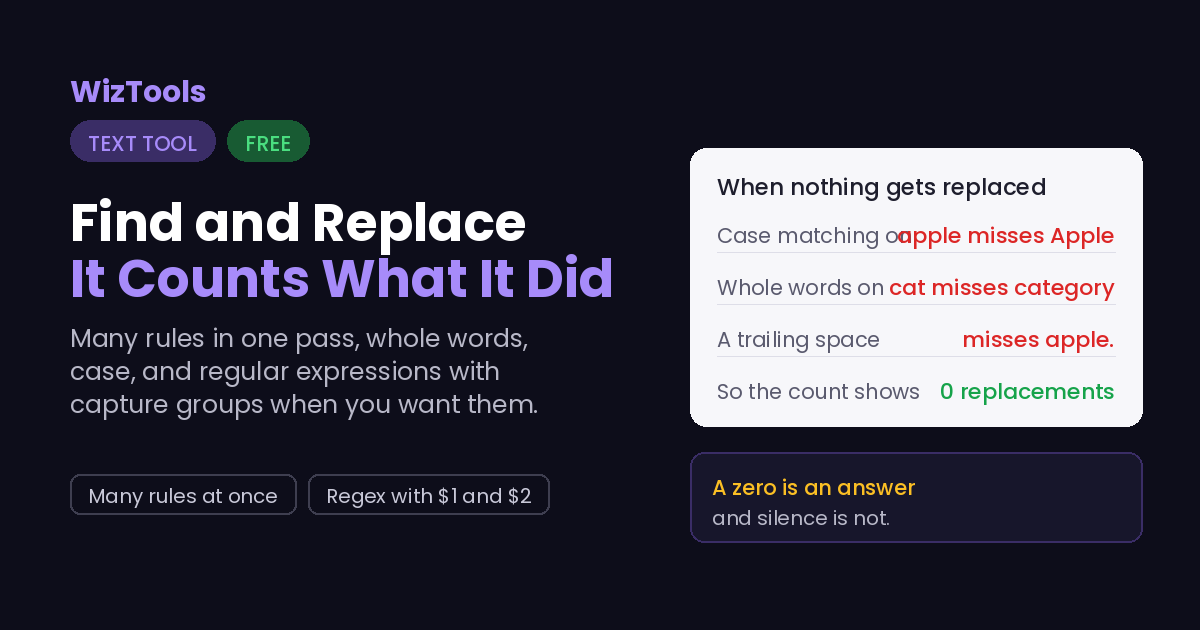
When Nothing Gets Replaced
Four reasons, and all four are visible on this page.
| What happened | Why |
|---|---|
| Case | Looking for apple with case matching on will not find Apple. Case matching is off by default here, so this one usually shows up when you switched it on. |
| Whole words | With whole words on, cat does not match inside category. That is the point of it, and it is also why a partial word stops being found. |
| A stray space | Searching for apple with a trailing space misses apple. at the end of a sentence. Spaces inside the search box are real characters. |
| Regex mode | With regular expressions on, . means any character and ( starts a group. Text with brackets in it needs them escaped, or the switch turned off. |
Where Your Text Goes
Nowhere. And you can check that yourself.
How to Find and Replace Text
Four steps, and your original text is never changed.
What to Know Before You Replace
Including the things this tool cannot do.
Key Features & Capabilities
What this tool does, and what it deliberately does not.
About the Find and Replace Text
Find and replace is in every editor, and it is usually the wrong shape for the job. It changes the document in place, it does one rule at a time, and it tells you nothing until you look. When you have twenty substitutions to make across a block of text, that becomes twenty rounds of dialog boxes and a lot of hoping.
This does the whole set at once. Each rule is a row, the rules run top to bottom in a single pass, and the result appears beside your original rather than on top of it. The number of replacements is on screen the whole time, which turns the most common problem with find and replace into a number you can read.
The default is deliberately literal. Nothing you type in the search box is treated as a pattern unless you switch on regular expressions, so a search for a price with a dollar sign in it, or a sentence with brackets, works without escaping anything. When you do want patterns, the switch is right there and the capture groups work the way they do everywhere else.
Frequently Asked Questions
Why a replacement misses, and what changes when regex is on.