WizTools123
WizTools123
Free Online Tools

Tool Categories


Image Tools New Tool

Free Online Bulk Image Border, Rounded Corner and Shadow Maker

Frame pictures in your browser. A border in any colour with the deeper bottom edge of a mounted print, rounded corners or a full circle for an avatar, and a soft shadow with its own size and distance. The page warns before JPEG turns your transparency black.
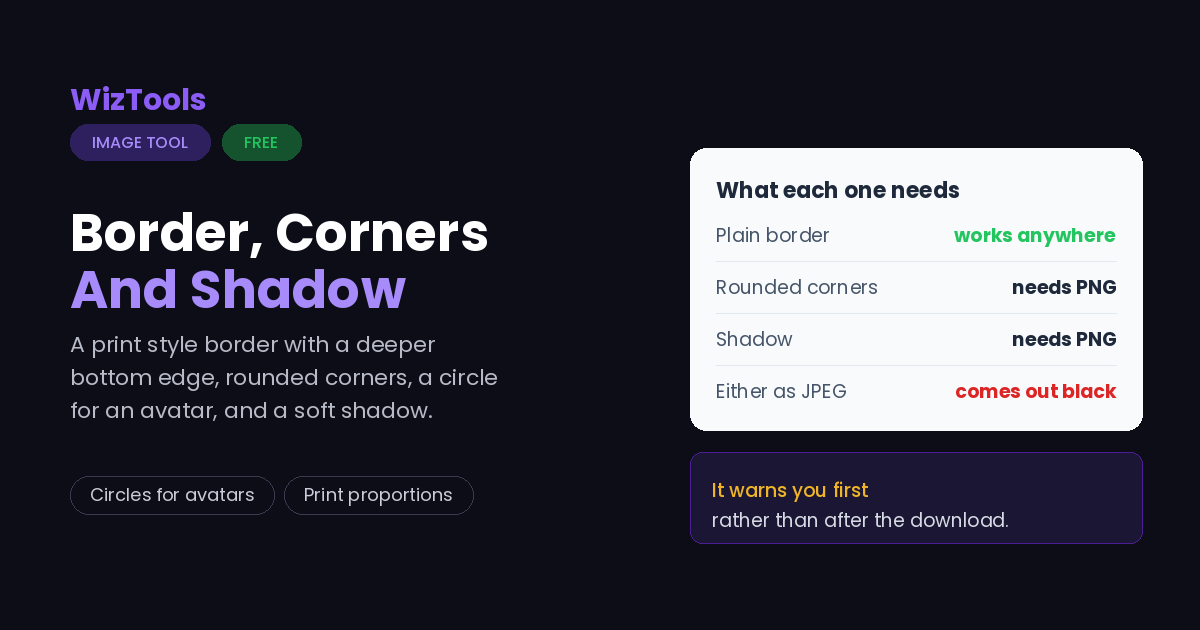
Free Forever Nothing Uploaded Circles for Avatars Live Preview
Free Online Bulk Image Border, Rounded Corner and Shadow Maker
Share this tool
Advertisement Slot (Top Banner) Google AdSense Unit • Responsive Banner
Bulk Image Border, Corner and Shadow Maker Nothing loaded yet
Drop pictures here As many as you like. They are opened by your browser, not by a server. Choose pictures No limit on how many • 40 MB each • nothing is uploaded

This is the first picture. Everything you set is applied to all of them.

Click any picture to see your settings on that one. The settings on the right are applied to every picture.

The border
Width pixels 20
Doubles the bottom edge, which is how a mounted photograph and a Polaroid are proportioned.
Rounded corners
Radius pixels, or drag to a circle 0
Crops to a square first, then rounds it all the way. This is what an avatar needs.
Drop shadow
Size pixels, 0 is off 0
Distance pixels down 8
A shadow needs transparent space around the picture, so the file grows and has to be a PNG or a WebP. Choosing JPEG fills that space with black.
Save as
GIF and BMP cannot be written by a browser, so those become PNG.
Quality JPEG and WebP only 88
Picture Before After Saved  
Everything together — — —  
Buy Us A Coffee

Enjoying WizTools123? Help keep our server infrastructure 100% free and open for everyone.

Buy Us A Coffee
Sponsored Content (Below Tool) Google AdSense Placement

Is It Safe to Do This Online?

A fair question, and the answer is checkable.

What happens to your picture Most sites that do this This page
Where the work is done On their server In your browser
Who else can see the picture Whoever runs the server Nobody, it never left
What happens to the GPS location Reaches them before it is stripped Never leaves your device
Can you verify the claim No, you have to trust it Yes, see below
Check it yourself. Press F12 to open your browser tools and go to the Network tab. Drop a picture in and use the tool. You will see the page fetch its own code and nothing else: your file is never sent. For a stronger test, load this page, turn off your wifi, and use it anyway. It still works, which would be impossible if a server were doing the job.

How to Frame a Picture

Drop, choose, download. Your originals are never touched.

1
Step 1 Drop your pictures in. As many as you like, and none of them are uploaded.
2
Step 2 Set the border width and colour, and turn on the deeper bottom edge for a print look.
3
Step 3 Round the corners or go all the way to a circle, and add a shadow if it needs one.
4
Step 4 Press Frame, then download them singly or all at once as a ZIP.

Borders, Corners and Shadows

Three effects that all need the same thing: room.

All three effects make the picture bigger. A border adds its width to each side, a shadow needs transparent room to fall into, and both change the final dimensions. If a size limit matters, do the framing first and resize afterwards.
Rounded corners and shadows need transparency, so they need PNG. Saving either as JPEG fills the transparent part with solid black, because JPEG has no transparency and never has. The page warns before you write the file rather than after.
A deeper bottom edge is not a gimmick. Mounted photographs and Polaroids have been proportioned that way for a century, because it gives the eye somewhere to rest and a place for a caption. One switch does it.
The circle crops, and cannot un-crop. Making a picture round squares it first, taking the middle, so anything at the left and right edges of a landscape photograph is gone. Crop it yourself first if what matters is not in the middle.

Key Features & Capabilities

What this tool does, and what it deliberately does not.

Never uploaded The framing happens in your browser, so photographs stay on your own machine.
Border, corners, shadow Three jobs that all need the same room around the picture, so they live on one page rather than three.
The print proportion A deeper bottom edge, the way a mounted photograph or a Polaroid is laid out, from one switch.
Circles for avatars Square crop and full rounding in one step, which is what a profile picture actually needs.
It warns about JPEG Rounded corners and shadows need transparency. The page says so before the file is written, not after.
A whole batch at once One frame across a set, which is how a gallery or a product grid is made consistent.

About the Bulk Image Border, Corner and Shadow Maker

This page puts a frame around a picture. A plain border in any colour, rounded corners, a full circle for an avatar, and a soft shadow underneath. The three live together because they all need the same thing: space around the picture that was not there before.

The border has one option worth knowing about. Turning on the deeper bottom edge doubles the space below the picture, which is how mounted photographs and Polaroids have been proportioned for a century. It gives the eye somewhere to rest and leaves a place for a caption, and it is the difference between a picture with a border and a picture that looks framed.

Rounded corners and shadows both need transparency to work, which means PNG or WebP. Saved as JPEG they come back with solid black where the transparency should be, because JPEG has no channel for it. The page says so next to the format box rather than letting anyone discover it afterwards.

Everything runs in your own browser, and a whole set can be framed identically in one pass, which is how a product grid or a gallery ends up looking like it was designed rather than assembled.

Frequently Asked Questions

Polaroid frames, rounded avatars, shadows and transparency.

Drop it here, set the width and leave the colour on white. Turn on the deeper bottom edge if you want it to look like a mounted print. The preview shows the result immediately and nothing is uploaded.

Turn on Make it a circle. The picture is cropped square from the middle and then rounded completely, which is exactly what an avatar needs. Save it as PNG so the corners stay transparent.

Because it was saved as JPEG, which has no transparency. The corners you cut away came back as solid black. Choose PNG or WebP in the format box.

Yes, and it needs room to fall into, so the file grows a little and has to keep transparency. Set the size for how soft it is and the distance for how far below the picture it sits.

Yes. Twenty pixels of border adds forty to the width and forty to the height. If there is a size limit to meet, frame first and then resize with our Bulk Image Resizer.

No. Everything happens inside your browser, which you can prove by turning off your internet connection and framing a picture anyway.

Other Image Tools

Advertisement Slot (Bottom Banner) Google AdSense Unit • Responsive Banner